Driver/File Download

Search by Product Name

Verion : -

Size : 324.1 MB

Pantum P5500DN Windows Driver
Applicable product : P5500DN

Verion : V1.0.7

Size : 351.41MB

Pantum CP2200-CM2200 Windows Driver
Applicable product : CP2200-CM2200

Verion : V2.3.9

Size : 7.97MB

Pantum P3500 Series Windows Driver
Applicable product : P3500D/P3500DN

Verion : V1.9.45

Size : 26.95MB

Pantum P3305DW Series Windows Driver
Applicable product : P3300DN/P3300DW/P3302DN/P3302DW/P3305DN/P3305DW/P3308DN/P3308DW

Verion : V1.0.14

Size : 24.51MB

Pantum P3010 Plus Series Windows Driver
Applicable product : P3010DW Plus/P3012DW Plus

Verion : V2.6.42

Size : 32.22MB

Pantum P2500W PLUS Windows Driver
Applicable product : P2500/P2500W/P2502/P2502W/P2506/P2509/P2509W

Verion : V2.8.34

Size : 58.07MB

Pantum M7105DW Series Windows Driver
Applicable product : M7100DN/M7100DW/M7102DN/M7102DW/M7105DN/M7105DW/M7108DW/L2710FDW

Verion : V1.0.14

Size : 29.49MB

Pantum M7100DW Series Windows Driver
Applicable product : M7100DW Plus/M7102DW Plus

Verion : V1.2.30

Size : 58.06MB

Pantum CP2100DW Windows Driver
Applicable product : CP2100D/CP2100DN/CP2100DW

Verion : V1.2.32

Size : 85.45MB

Pantum CM2100 Series Windows Driver
Applicable product : CM2100DN/CM2100DW/CM2100ADN/CM2100ADW

Verion : V2.1.44

Size : 30.68MB

Pantum BP5100DW Windows Driver
Applicable product : BP5100DN/BP5100DW

Verion : V1.0.20

Size : 37.04MB

Pantum BP4200 Series Windows Driver
Applicable product : BP4200D/BP4200DN/BP4200DW

Verion : V2.1.47

Size : 72.49MB

Pantum BM5100 Series Windows PCL6 Driver
Applicable product : BM5100ADN/BM5100ADW/BM5100FDN/BM5100FDW

Verion : V1.0.25

Size : 75.6

Pantum BM4240 Series Windows Driver
Applicable product : BM4240DW

Verion : V1.0.37

Size : 28.09MB

Pantum BM2300 Series Windows Driver
Applicable product : BM2300/BM2300W/BM2300NW/BM2300A/BM2300AW/BM2300ANW/BM2309W/BM2309AW

Search by Product Name

Verion : -

Size : 324.1 MB

Pantum P5500DN Windows Driver
Applicable product : P5500DN

Verion : V1.0.7

Size : 351.41MB

Pantum CP2200-CM2200 Windows Driver
Applicable product : CP2200-CM2200

Verion : V2.3.9

Size : 7.97MB

Pantum P3500 Series Windows Driver
Applicable product : P3500D/P3500DN

Verion : V1.9.45

Size : 26.95MB

Pantum P3305DW Series Windows Driver
Applicable product : P3300DN/P3300DW/P3302DN/P3302DW/P3305DN/P3305DW/P3308DN/P3308DW

Verion : V1.0.14

Size : 24.51MB

Pantum P3010 Plus Series Windows Driver
Applicable product : P3010DW Plus/P3012DW Plus

Verion : V2.6.42

Size : 32.22MB

Pantum P2500W PLUS Windows Driver
Applicable product : P2500/P2500W/P2502/P2502W/P2506/P2509/P2509W

Verion : V2.8.34

Size : 58.07MB

Pantum M7105DW Series Windows Driver
Applicable product : M7100DN/M7100DW/M7102DN/M7102DW/M7105DN/M7105DW/M7108DW/L2710FDW

Verion : V1.0.14

Size : 29.49MB

Pantum M7100DW Series Windows Driver
Applicable product : M7100DW Plus/M7102DW Plus

Verion : V1.2.30

Size : 58.06MB

Pantum CP2100DW Windows Driver
Applicable product : CP2100D/CP2100DN/CP2100DW

Verion : V1.2.32

Size : 85.45MB

Pantum CM2100 Series Windows Driver
Applicable product : CM2100DN/CM2100DW/CM2100ADN/CM2100ADW

Verion : V2.1.44

Size : 30.68MB

Pantum BP5100DW Windows Driver
Applicable product : BP5100DN/BP5100DW

Verion : V1.0.20

Size : 37.04MB

Pantum BP4200 Series Windows Driver
Applicable product : BP4200D/BP4200DN/BP4200DW

Verion : V2.1.47

Size : 72.49MB

Pantum BM5100 Series Windows PCL6 Driver
Applicable product : BM5100ADN/BM5100ADW/BM5100FDN/BM5100FDW

Verion : V1.0.25

Size : 75.6

Pantum BM4240 Series Windows Driver
Applicable product : BM4240DW

Verion : V1.0.37

Size : 28.09MB

Pantum BM2300 Series Windows Driver
Applicable product : BM2300/BM2300W/BM2300NW/BM2300A/BM2300AW/BM2300ANW/BM2309W/BM2309AW

Used for OCR recognition
(Applicable to the old style interface driver of Pantum)

Click Download
(Under development)

Used for OCR recognition
(Applicable to the new style interface driver of Pantum)

Apple

V1.3.284

Android

V2.0.201

FAQs

Step1: Make sure P2500W printer is power on. 

Step2: Connect to Printer AP by mobile phone or PC. The SSID is start with” Pantum-AP”, and follow with number and character string.

Step3: Visit the Printer Web page via browser, Printer default address is 192.168.223.1

Step4: Enter the printer web page, choose “Log in” Tap.

Step5: Input default user name: admin, Default password:000000. And Login.

Step6: Select “settings” Tap — wireless settings — wireless Hot spot. Then set wireless Parameter — Authentication — either WPA or WPA2.
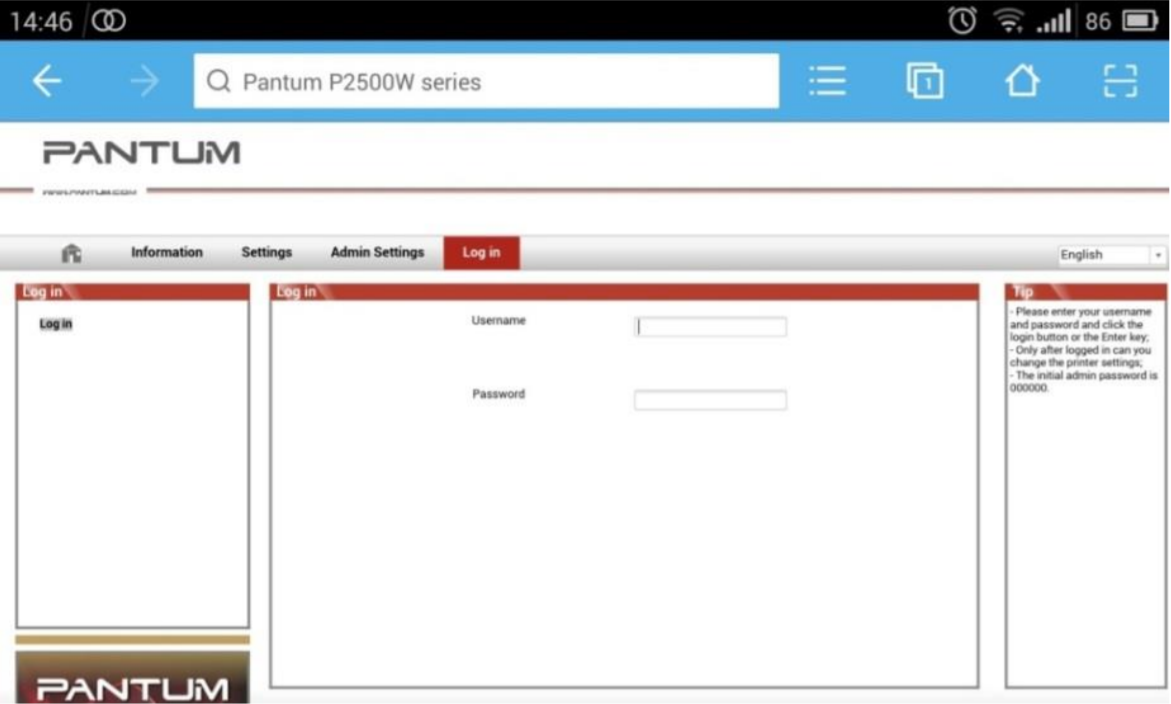
Step7: Set the password in the tap, then click “apply “.

Step8: Disconnect equipment and printer, when reconnect them, it should input the password as step 7 setting.

Remark Here is the way to recover factory default setting in case customer forgets the password: 

1) Turn off the printer power switch. 

2) Press the “cancel / continue” button until the printer turn on and enter standby mode. ( It will take 5 seconds with pressing the button)

Reason1: It is inconsistent with the network name, safe mode and password.

Solution: It needs to enter the corresponding name, mode and password of internet. Please don’t select “Enter SSID Manually” when you install the driver and select the corresponding internet SSID and safe mode. And then please enter your internet password to configure it.

Reason2: The IP of printer and PC are not under the same router. Solution: Please check with your configuration page to confirm the IP address (Press the “continue/cancel” button for 4 seconds, then it can print). And please change your IP address the same with your configuration page

Step3: Visit the Printer Web page via browser, Printer default address is 192.168.223.1

Step4: Enter the printer web page, choose “Log in” Tap.

Step5: Input default user name: admin, Default password:000000. And Login.

Step6: Select “settings” Tap — wireless settings — wireless Hot spot. Then set wireless Parameter — Authentication — either WPA or WPA2.

Step7: Set the password in the tap, then click “apply “.

Step8: Disconnect equipment and printer, when reconnect them, it should input the password as step 7 setting.

Remark Here is the way to recover factory default setting in case customer forgets the password: 

1) Turn off the printer power switch. 

2) Press the “cancel / continue” button until the printer turn on and enter standby mode. ( It will take 5 seconds with pressing the button)

The WIFI default password is “12345678”

Step1: Select ” Wireless network connection.” at the first step.

Step2: Select below option and click “next”.

Step3: Select below option and click “next”.

Step4: Select the WIFI name of your router and click next  

Step5: Click “Next’ after established the wireless connection.

Step6: Select” Add the IP address or hostname manually” and enter your hostname (for hostname please check with note )

How to check your hostname of printer?

Please print the network configuration page from printer and then you will see it as below :

Step7: it will be done after several minutes.

Please check it on the WIFI configuration information page as below:

Step1: Reset the printer 

  1. a) Turn off the printer power switch. 
  2. b) Press the “cancel / continue” button until the printer turn on and enter standby mode. (It will take 5 seconds with pressing the button)

Step2: Re-install the driver again.

Step1: Connect your printer and your laptop with a USB cable

Step2: Click the “System Preferences”-“Pinter & Scanners”

Step3: Make sure the printer you need to use is the Default printer.

Step4: Select the document and start to print

The Mopria Alliance is a non-profit membership organization of leading global technology companies with the mission of providing universal standards and solutions for print and scan. With a focus on mobility and modern productivity trends, Mopria® technology is used to allow users to interact intuitively and seamlessly with a printer, multi-function printer, or scanner, regardless of brand. Learn more at http://www.mopria.org. Print. Scan. Go.


Mopria mobile print requires installing Mopria Print Service on the Android device. You can print photos, emails, webpages and files. 


  1. The operating systems and applications which support Mopria mobile printing 
    1. Mopria mobile printing is suitable for Android4.4 or higher version. 
    2. Mopria mobile printing is supported by applications, e.g. Microsoft Office 1.01(16.0.4201.1006) or higher version, Adobe Reader (V11.7.1) or higher version. 
    For more information about applications which support Mopria printing, please visit: https://mopria.org.

  2. How to download Mopria Print Service 
    1. Download Mopria Print Service from Google Play and install it on the Android device. 
    2. For Chinese users, please download the Mopria printing service at https://app.mopria.org/MopriaPrintService for downloading and installing this App. 

  3. Preliminary preparations
    1. A printer that has wireless network function. 
    2. Android mobile device. 

  4. How to use Mopria mobile printing
    Before printing, please set the Mopria print service as “ON”. 
    1. Tap the “settings” of the Home Screen on Android mobile device, and select “print”. 
    2. Set the “Mopria print service” as “ON”. 
    All other printing plug-ins should be shut down when you use Mopria mobile printing function. 
    The printing steps may varied by applications, taking Adobe Reader as an example for explanation. 
    1. Turn on printer power. 
    2. Connect the Android mobile device with wireless network of the printer 
    3. Open the files you need to print with Adobe Reader on the Android device. 
    4. Click .


Note:

  • If printing fails, please inspect if the Android device is connected to the wireless network where the printer is connected to. 
    • If the Android device cannot detect any printer, please inspect if power of the printer is turned on and if the printer is turned on.

Mopria™ Scan is a mobile scanning solution from Mopria Alliance, Inc. .
You can connect to any Mopria™ certified multi-function printer and scanner to scan documents directly to your Android™ mobile device.
For more information about Mopria, please visit https://mopria.org


  1. How to download Mopria Scan 
    1. Download Mopria Scan from Google Play and install it on the Android device. 
    2. Chinese users may download Mopria Scan at
    https://app.mopria.org/zh-cn/MopriaScanDownload
  2. Preliminary preparations
    1. A printer that has wireless network function. 
    2. Android mobile device. 

  3. How to use Mopria Scan
    1. From your Android mobile device, launch the Mopria Scan app.
    2. Select scanner or multi-function printer directly and adjust the scanning settings as needed.
    3. Tap “Scan” .
    4. Tap “Save” .


Note